Written by Quicklook · Oct 21, 2026 · 7 min read · 1,385 words
Shopify Rollouts: Schedule Black Friday Banners and Discounts
A practical pre-holiday test for small Shopify teams: align the offer's timing, inspect checkout, and track the channels outside your rollout.

TL;DR
Before buying another scheduling app, try a small Shopify Rollouts Event that pairs a genuine sale message with its discount. Review the planned storefront changes, check the live offer at checkout when it starts and its removal when it ends, and manage email, ads, and external listings separately.
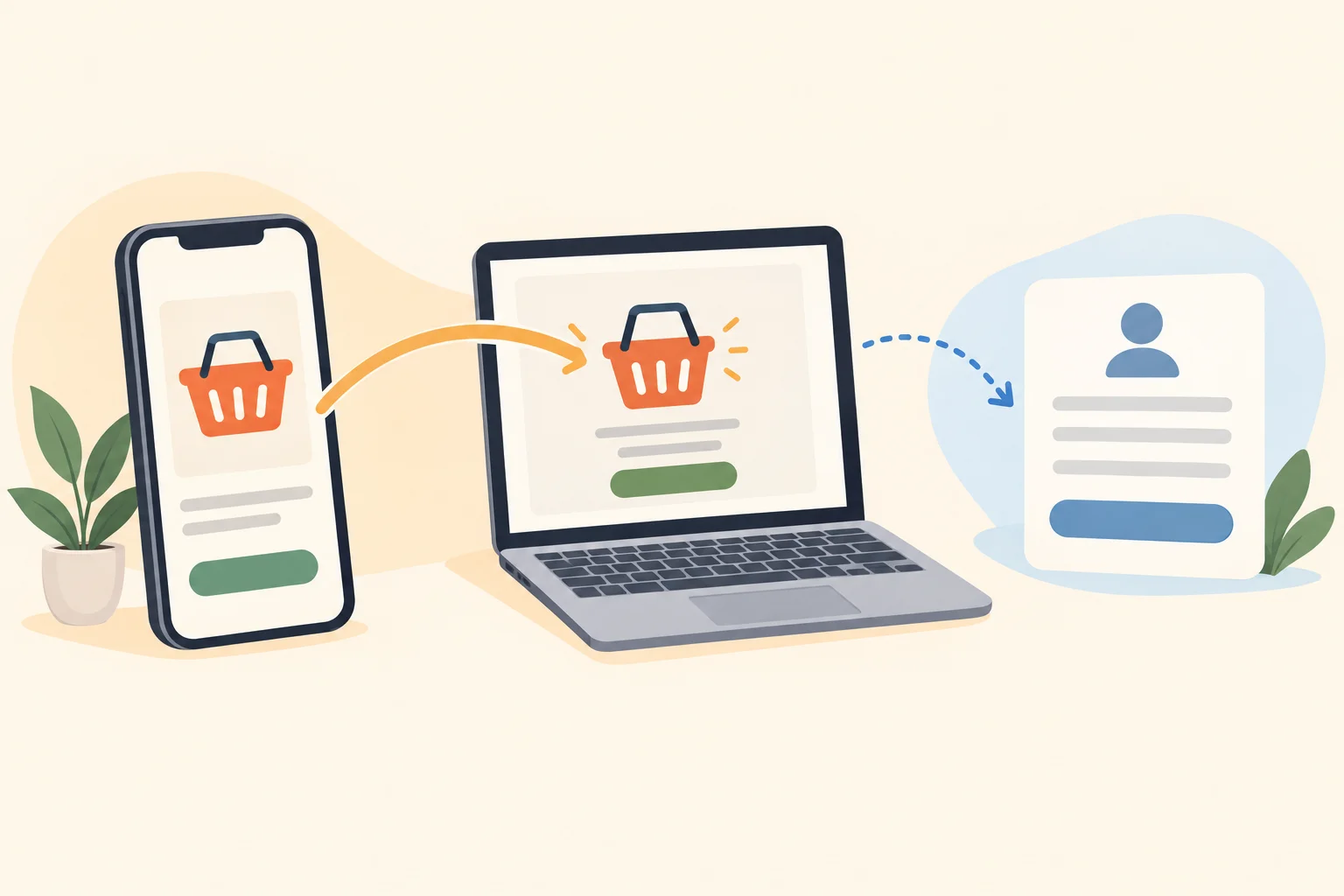
Picture your sale banner going live while you're packing orders. Then a shopper sends a screenshot: the offer looks great on the homepage, but the discount isn't showing at checkout. You're now checking settings with packing tape stuck to your sleeve.
That's the handoff worth testing before Black Friday—not whether another calendar can turn green at the right time.
There's a reason to do it now. In NRF's holiday survey published October 20, 43% of holiday shoppers said they planned to start browsing and buying before November. A modest, genuine promotion this week can give your team something more useful than an elaborate, untested holiday schedule: a record of what shoppers actually saw.
Check the built-in option before buying another app
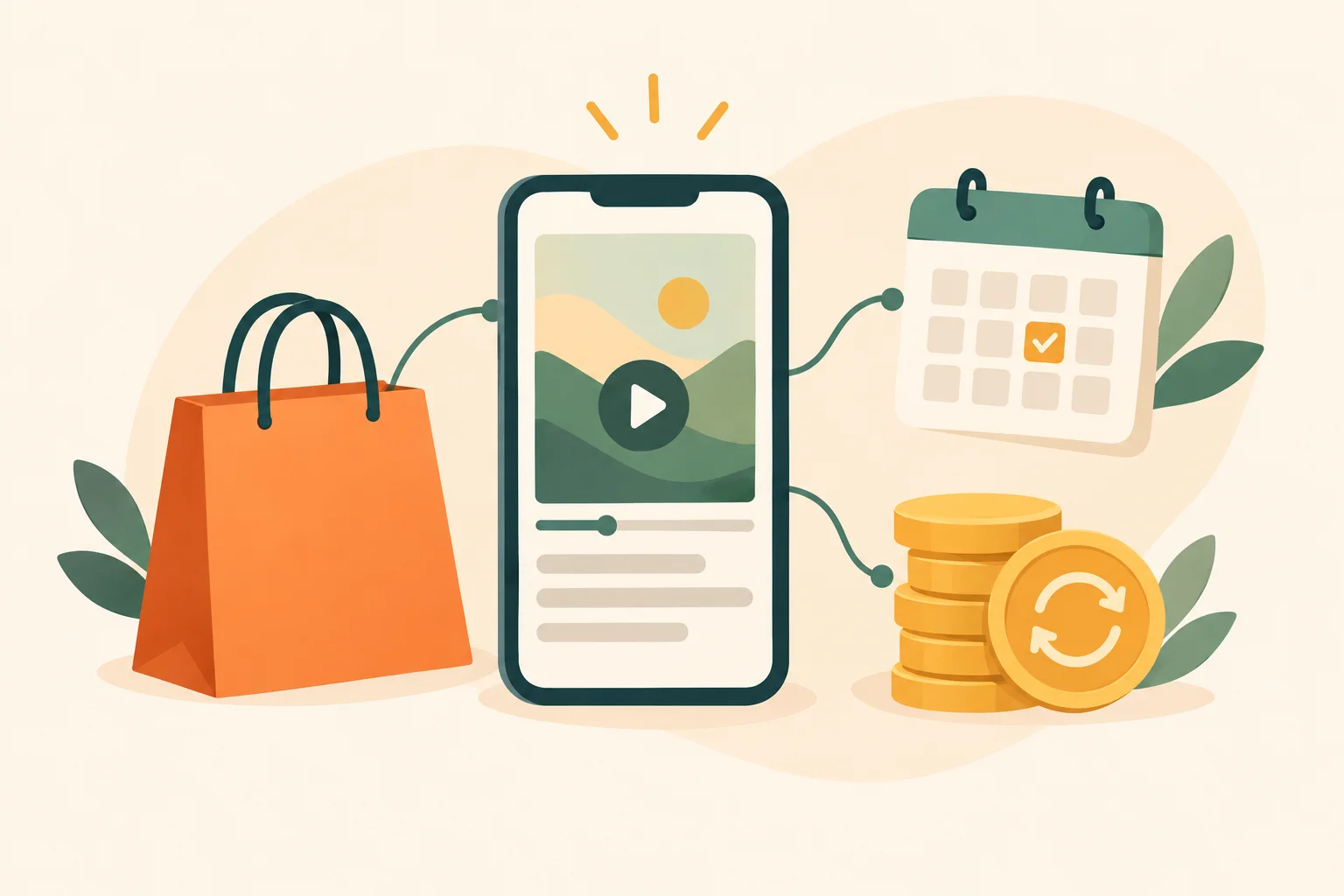
Shopify's October 6 guidance describes Rollouts as a way to release theme customizations, discounts, and catalogs together. That makes it worth evaluating for a specific job: getting your storefront announcement and the offer behind it to start together.
It isn't evidence that your entire holiday campaign can run unattended. The useful distinction is between coordinating store changes and coordinating every place you've advertised those changes.
Use Shopify's rollout setup instructions. Shopify says Rollouts is available on Basic or higher; Experiments separately requires Grow or higher. Don't mistake the Experiments requirement for the entry point to a scheduled promotion.
Before building anything, confirm that the person responsible can access the settings and has the permissions needed to prepare the promotion. “Who can change this?” belongs in preparation, not in the team chat while customers wait.
My recommendation: test the built-in option against your actual promotion process before shopping for a replacement. Buy another tool only when you can name the job this setup leaves undone.
Create an Event with a small, real offer
For a temporary sale, choose Event, not Launch. Shopify says an Event has an end date and rolls its changes back, while a Launch is intended for permanent changes.
Keep the first promotion narrow enough to inspect without a committee. Picture a homewares store running a short offer on an eligible collection. Its announcement and an existing discount belong in the same rollout. Leave the homepage redesign and unrelated catalog cleanup out of this Event.
Write a brief before configuring the Event:
- •Offer: the exact promise the shopper should understand.
- •Products: what qualifies and what doesn't.
- •Audience: the intended market and eligible customers.
- •Window: when the offer should become available and when it should stop.
- •Owner: who will check the live experience at both ends.
Make it a genuine offer you're prepared to honor, not placeholder copy that would cause trouble if someone bought during the test.
Keep the announcement specific enough to check. If the discount applies only to selected products or customers, don't write a banner that promises it to everyone. The purpose is to test a truthful promotion, not merely prove that a banner can appear.
Check the Event clock and discount clock separately
Check this setting separately: a discount included in a rollout keeps its own active dates. Treat the Event window and the discount window as separate things to inspect—not interchangeable versions of the same setting.
Before saving, work through this check:
| Check | What to confirm |
|---|---|
| Event window | The saved start and end match the intended offer window. |
| Discount dates | The discount's own active dates support that same window. |
| Eligibility | Products and customers match the promise in the announcement. |
| Discount combinations | Check combination settings and test offers you intend to allow together. |
| Store time zone | The saved times mean what your team thinks they mean. |
Shopify's scheduling instructions use the store's configured time zone in Settings → General. Don't promise a separate local-midnight launch in every market without verifying the schedule in your particular store.
Also inspect any conflict warnings. Shopify added warnings for conflicting settings within the Rollouts setup flow on September 22. Investigate those warnings before saving; a calendar entry isn't a substitute for resolving a conflict.
Have the person checking launch read the saved settings, not just the original brief. The brief describes your intentions. The saved settings are what you're asking the store to do.
Review the setup, then test the live purchase
Before launch, compare the planned announcement with the offer brief. Then check the live purchase experience when the Event starts.
Follow the shopper's path:
- •Storefront: Does the announcement appear, and does its wording match the offer?
- •Product page: Is the featured item eligible, and is the path to buying clear?
- •Cart: Does the offer behave as intended with the selected products?
- •Checkout: Does the discount apply to an eligible purchase, with a final total you can explain?
Where practical, also check a purchase that shouldn't qualify. A successful eligible cart doesn't tell you whether your exclusions are working.
Don't stop at “the discount exists in admin.” The customer isn't shopping in your settings screen. Look for the actual benefit at checkout, alongside shipping and any other charges the shopper sees before payment.
Record what you observed and when. If the message and checkout disagree, hold back further promotion while you correct the relevant setting or copy. The email being ready is not a reason to send people into a broken offer.
Give email, ads, and listings their own checklist
Don't treat a coordinated Shopify release as a promise that every channel changes at the same instant.
Shopify says Events that reach less than 100% of eligible visitors—and all Experiments—keep their catalog changes on the online store. Your campaign calendar may have matching start times. That isn't proof the shopper sees matching offers.
Keep a separate checklist for:
- •Email: the scheduled send, offer wording, eligibility, and stated end time.
- •Ads: the promotion message, destination page, launch timing, and stopping point.
- •Product listings: the advertised price and offer at launch, then again after rollback.
Assign an owner to each channel you're using. If every owner is you, that's fine. You're making a checklist, not pretending you have departments.
Don't schedule an email or ad on the assumption that Rollouts publishes it too. The documented changes concern Shopify store resources, not your whole off-store campaign.
If you're testing catalog changes for only part of your audience, be especially cautious about promoting a matching price elsewhere. The storefront test and an external listing may not be showing the same offer.
Verify the ending before reusing the setup
The test isn't finished when the sale starts. Keep the scheduled end check on someone's calendar, even if the launch looked perfect.
After the Event ends, revisit the storefront, relevant product page, cart, and checkout. Confirm that the temporary announcement has gone and that the discount no longer applies where the offer was supposed to expire. A vanished banner isn't proof that the discount stopped; remember its separate active dates.
Check external listings and active ads again. Also review the destination for any promotional email already sent, so someone returning to that offer can understand that it has ended.
For this first test, avoid unrelated catalog edits while the Event is running. Keep the work narrow enough that you can tell what caused an unexpected result.
Save a short record of the intended schedule, observed start and end, mismatches, and corrections. Use that record to decide whether the setup is ready for Black Friday.
Conclusion
Judge the test by whether shoppers received the promised offer and whether it ended cleanly—not by whether the schedule saved successfully.
Key Takeaways
- ✓Keep the first promotion narrow and genuine.
- ✓Save the checked settings with the promotion brief.
- ✓Give every off-store channel a named owner.
- ✓Resolve mismatches before expanding the campaign.
Next Steps
Choose an upcoming offer your team can comfortably inspect. Write down the expected shopper experience, then reserve time for someone to check both its live start and its scheduled ending.
If your store still needs a tool built around its own promotion process, Contact Quicklook.